Minutes Resolutions Archive Retrieval System
| Document Title | Minutes Resolutions Archive Retrieval System |
|---|---|
| Document Number | SD-001 |
| Version | 2.1. |
| Author(s) | Analyst, Governance |
| Reviewer(s) | Solution Architect, Employee |
| Approved by | Head (Research, Technology and Development) |
| Last Update Date | August 1st, 2026 |
Introduction
The Minutes, Resolutions, Archive & Retrieval System is a centralized platform for managing meeting minutes, resolutions, and related documents. It enables users to record, organize, archive, and retrieve meeting records efficiently while supporting approval workflows, action item tracking, and secure document management. The system improves transparency, collaboration, and the overall efficiency of meeting record management.
Key Features
- Minutes Management – Create, edit, and maintain meeting minutes in a centralized digital repository.
- Meeting Series Management – Organize meeting records under different committees, boards, councils, or meeting series for structured record keeping.
- Resolution Recording – Record and maintain resolutions passed during meetings along with their approval status and relevant details.
- Document Publishing – Publish approved meeting minutes and resolutions with configurable visibility settings such as Public or Private.
- Document Archive & Retrieval – Securely archive meeting records and retrieve them quickly using advanced search and filtering options.
- Multi-Language Support – Create and manage meeting minutes and documents in multiple languages to meet institutional requirements.
- Supporting Document Management – Upload and manage agendas, annexures, presentations, attendance sheets, and other supporting documents with each meeting record.
- Role-Based Access Control – Control document creation, editing, publishing, and viewing through configurable user roles and permissions.
Key Purpose
- To maintain a centralized repository of all meeting minutes and resolutions.
- To securely archive meeting records for future reference and compliance.
- To enable quick and efficient retrieval of historical meeting documents.
- To streamline the publication and distribution of approved meeting minutes.
- To maintain proper versioning and document history.
- To reduce manual paperwork and physical document storage.
- To provide role-based access for secure document management.
Dashboard Overview
The Dashboard provides a real-time overview of the Minutes Archive & Retrieval System, enabling users to monitor document statistics and quickly access recently created records.
The dashboard includes the following sections:
- Current Month Documents – Displays the total number of documents created during the current month.
- Total Documents – Shows the total number of documents available in the system.
- Active Documents – Displays the number of documents currently marked as active.
- Inactive Documents – Displays the number of documents marked as inactive.
- Recent Documents – Lists the most recently created documents along with important details such as Title, Series, Language, View Type (Public/Private), Status, and Created Date.
- View All – Allows users to navigate to the complete list of archived documents for further management and retrieval.
The dashboard serves as the central landing page, providing quick insights into document activity and enabling easy access to recently added meeting minutes and archived records.
Available Roles in Module
| Role | Description |
|---|---|
| Document | This role is assigned to administrative users responsible for managing documents within the system. Users with this role can create, edit, view, and manage all documents in the module, ensuring efficient and organized document management. |
Application Overview
- Document
- Document Types
- Report
Document Types
Document Types are used to classify and organize different kinds of meeting-related records in the Minutes & Resolutions Archive & Retrieval System. They help users manage, retrieve, and archive documents efficiently.
Common document types include:
- Academic Meeting – Documents related to the Academic Council, Board of Studies, or other academic meetings.
- Leave Management System – Documents related to leave policies, approvals, or discussions on the Leave Management System.
- Finance Committee – Documents related to budget, finance, expenditure approvals, and other finance committee matters.
Administrators can create a new document type by clicking the Add Document Type button located at the top-right corner of the portal. The following details must be filled in to create a document type:
- Name – Document type name.
- Status – Active/Inactive.
Document
A Document in the Minutes & Resolutions Archive & Retrieval System is an electronic record used to store and manage meeting-related information. It contains details such as the meeting agenda, minutes, resolutions, circulars, policies, reports, and supporting documents. Each document can be categorized, assigned a language and view type (Public/Private), and maintained with an active or inactive status. The system enables users to securely archive, search, retrieve, and manage these documents for future reference and institutional record-keeping.
How to Create a Document
Admin users can add or create documents by clicking the Create Document button located at the top right corner of the portal. The following details must be filled in to create a document:
- Title
- Members (select from the drop-down)
- Other Members
- Series Number
- Date (select from the calendar)
- Other Titles
- Types
- Language (select from the drop-down)
- Keywords
- Abstract
- Sponsors
- Description
- File Description
- View Types (select from the drop-down)
- Status (select from the drop-down)
Report
The Reports module in the Minutes & Resolutions Archive & Retrieval System allows authorized users to view, filter, and download meeting document records. It provides a comprehensive overview of archived documents and helps administrators monitor, analyze, and maintain meeting records efficiently.
Report Details
The Reports module includes the following information for each document:
- Title – Name of the document.
- Members – Members associated with the document.
- Other Members – Additional participants, if any.
- Series – Document series or reference number.
- Other Titles – Alternative title of the document.
- Date – Date of the meeting or document.
- Type – Type of document (e.g., Minutes, Resolution, Circular).
- Language – Language of the document.
- Keywords – Keywords used for searching the document.
- Abstract – Brief summary of the document.
- Sponsors – Sponsoring organization or department, if applicable.
- Description – General description of the document.
- File Description – Details of the attached file or document.
- View Type – Visibility of the document (Public/Private).
- Status – Current status of the document (Active/Inactive).
- Added By – User who created or uploaded the document.
The report can be exported for record-keeping, monitoring document activity, and generating management reports.
Frequently Asked Questions
Q1. What is the Minutes & Resolutions Archive & Retrieval System? Answer: It is a centralized system used to record, organize, store, and retrieve meeting minutes, resolutions, and other meeting-related documents. It also helps manage activities before, during, and after meetings.
Q2. What is the purpose of the Dashboard? Answer: The Dashboard provides an overview of document statistics, document status, and recent documents, enabling users to monitor meeting records from a single screen.
Q3. What information is displayed on the Dashboard? Answer: The Dashboard displays the following information:
- Current Month Documents
- Total Documents
- Active Documents
- Inactive Documents
- Recent Documents
Q4. What are Document Types? Answer: Document Types are used to classify and organize meeting-related records, making documents easier to manage, archive, and retrieve.
Q5. What are some examples of Document Types? Answer: Examples include:
- Circular
- Academic Meeting
- Leave Management System
- Finance Committee
- Other meeting-related categories
Q6. How can an administrator create a Document Type? Answer: The administrator can click the Add Document Type button and enter the Document Type Name and Status (Active/Inactive).
Q7. What is a Document in the system? Answer: A document is an electronic record containing meeting-related information such as agendas, minutes, resolutions, circulars, reports, and supporting documents.
Q8. How can an administrator create a new document? Answer: Click the Create Document button, fill in the required details, and save the document.
Q9. What information is required while creating a document? Answer: The following information is required:
- Title
- Members
- Other Members
- Series Number
- Date
- Other Titles
- Type
- Language
- Keywords
- Abstract
- Sponsors
- Description
- File Description
- View Type
- Status
Q10. What is the purpose of the View Type field? Answer: The View Type determines the visibility of the document, such as Public or Private.
Q11. What is the purpose of the Status field? Answer: The Status field indicates whether a document is Active or Inactive.
Q12. What is the Reports module? Answer: The Reports module allows authorized users to view, filter, and download meeting document records for monitoring, analysis, and record-keeping.
Q13. What information is included in the reports? Answer: Reports include the following details:
- Title
- Members
- Other Members
- Series
- Date
- Type
- Language
- Keywords
- Abstract
- Sponsors
- Description
- File Description
- View Type
- Status
- Added By
Q14. Can reports be downloaded? Answer: Yes. The Reports module allows users to download meeting document records for future reference, monitoring, and management reporting.
Q15. What is the purpose of the Recent Documents section? Answer: The Recent Documents section displays the latest documents along with details such as Title, Series, Language, View Type, Status, and Created Date, allowing users to quickly access recently added records.
6. Glossary
| Term | Definition | Module Reference |
|---|---|---|
| Abstract | A brief summary of a document’s content, providing an overview of its key points. | Minutes Archive & Retrieval System » Document » Create Document |
| Create Document | A function that allows users to add new meeting minutes by filling in required fields such as title, date, and members. | Minutes Archive & Retrieval System » Document » Create Document |
| Create Document Type | A feature that enables users to define and categorise different types of documents stored in the system | Minutes Archive & Retrieval System » Document Type » Add Document Type |
| Description | A detailed explanation of the content within a document or meeting minutes. | Minutes Archive & Retrieval System » Document » Create Document |
| Document Type | A label used to classify documents based on their purpose, such as Meeting Minutes, Resolutions, or Reports. | Minutes Archive & Retrieval System » Document » Create Document |
| Edit Document | The process of updating or modifying an existing document entry. | Minutes Archive & Retrieval System » Document » Update option |
| File Description | A brief text explaining the content of an uploaded document. | Minutes Archive & Retrieval System » Document » Create Document |
| Keywords | Searchable terms are assigned to a document to help users find relevant meeting minutes quickly. | Minutes Archive & Retrieval System » Document » Create Document |
| Language Selection | A feature allowing users to specify the language in which a document is written. | Minutes Archive & Retrieval System » Document » Create Document |
| Members | Individuals assigned to a meeting are selected from a predefined list of the employees in the Employee Management Module. | Minutes Archive & Retrieval System » Document » Create Document |
| Series Number | A unique identifier assigned to a document for tracking purposes. | Minutes Archive & Retrieval System » Document » Create Document |
| Sponsors | Details of the meeting sponsors. | Minutes Archive & Retrieval System » Document » Create Document |
| Status | The current state of a document, such as Active or Inactive. | Minutes Archive & Retrieval System » Document » Create Document |
| Title | The name assigned to a document that reflects its content and purpose. | Minutes Archive & Retrieval System » Document » Create Document |
7. Workflow Diagrams
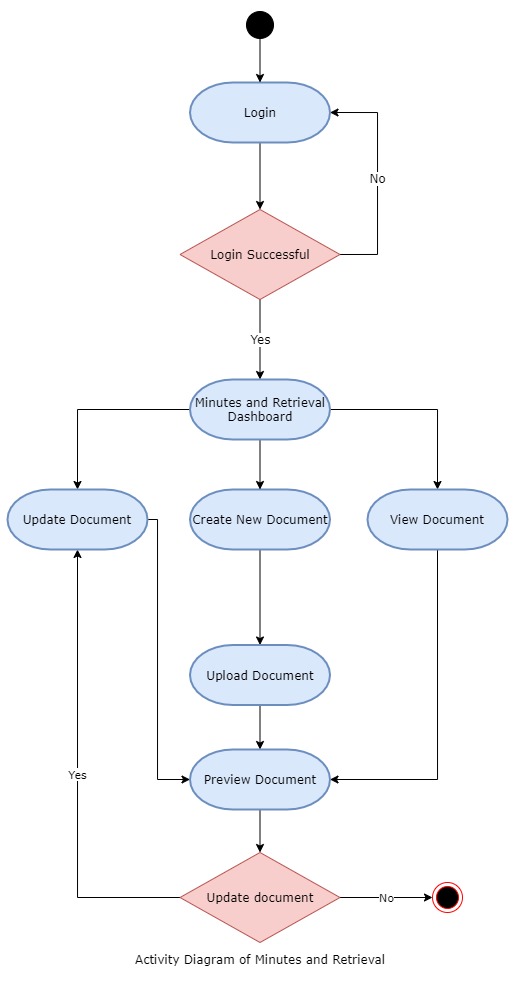
7.1. Activity Diagram
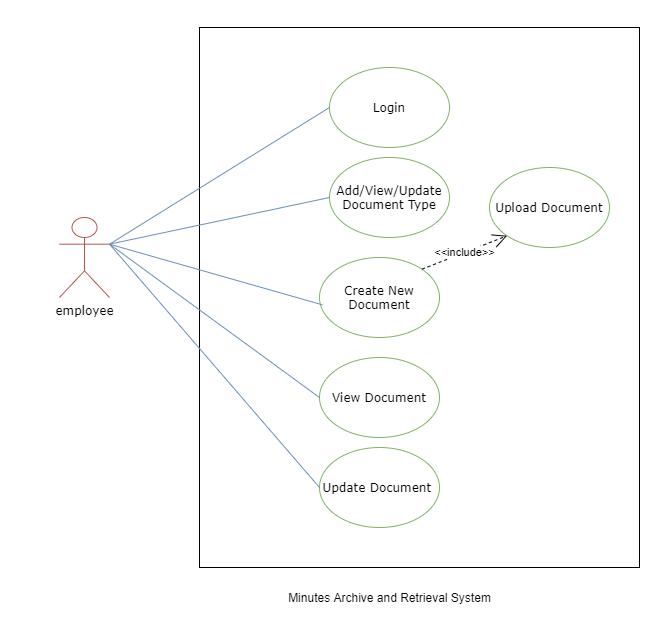
7.2. Use Case Diagram