Endowment Management System
| Document Title | Endowment Management System |
|---|---|
| Document Number | END-001 |
| Version | 1.3.3 |
| Author(s) | Assistant, Employee |
| Approved by | Senior Manager, Operations |
| Last Update Date | July 20, 2026 |
Introduction
The SAMARTH Endowment Portal is a comprehensive platform designed to facilitate endowment contributions by alumni, faculty, staff, well-wishers, corporate organizations, and members of society. It streamlines the entire contribution process by enabling secure online donations, efficient fund management, payment tracking, and transparent record maintenance. The portal helps institutions strengthen their financial resources while providing contributors with a simple and seamless donation experience.
What is an Endowment?
An endowment is a long-term financial asset established through contributions or donations made to an institution. The principal amount is generally preserved, while the income generated from it is utilized to support the institution’s academic, research, infrastructure, scholarships, and other developmental activities.
An endowment:
- Links past, present, and future generations by creating a lasting financial legacy.
- Enables institutions to make long-term commitments with confidence, knowing that sustainable financial resources will be available.
- Supports the institution’s mission by ensuring continuous funding for strategic initiatives and growth.
Importance of an Endowment
Endowments play a vital role in the long-term development and sustainability of an institution by:
- Providing Financial Stability: Creates a dependable source of funding that supports institutional activities over time.
- Leveraging Additional Revenue: Complements grants, government funding, and other revenue sources.
- Encouraging Innovation and Flexibility: Enables institutions to invest in new initiatives, research, scholarships, and infrastructure projects.
- Ensuring Future Sustainability: Provides financial confidence for future generations by maintaining a long-term funding mechanism.
The SAMARTH Endowment Portal simplifies the management of endowment contributions by offering configurable contribution areas, secure payment gateway integration, donor record management, payment tracking, reporting, and administrative dashboards, thereby promoting transparency, accountability, and efficient fund administration.
Dashboard
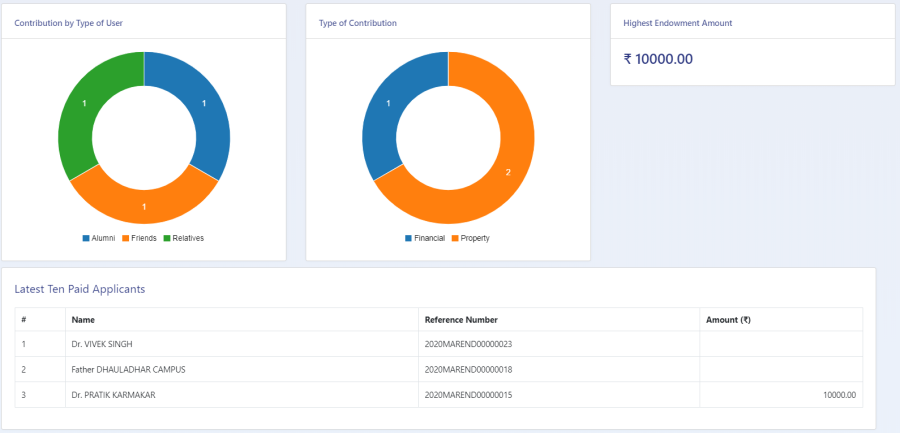
Dashboard shows the types of contribution and higest contribution amount. It shows the graphical representation of historical events of endowment porta usages. Admin will aslo get the below options on dashboard:
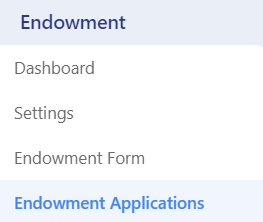
- Dashboard
- Endowment App
- Enodowment Form
- Endowment Applications
- Endowment Transactions
- Data Export
- Settings
Admin Dashboard
The Admin Dashboard provides a comprehensive overview of the Endowment Portal through interactive visualizations and summary statistics. It enables the Endowment Admin to monitor contributions, payment activities, and key performance indicators (KPIs) from a single screen, making it easier to analyze trends and track the overall performance of the portal.
The dashboard presents information using graphs, pie charts, and numerical indicators, allowing the admin to quickly understand the current status of endowment contributions.
Dashboard Highlights
The Admin Dashboard provides the following key insights:
- Contribution by Type of User: Displays the distribution of contributions made by different categories of users through graphical representation.
- Type of Contribution: Shows the breakdown of contributions based on different contribution areas using charts for easy analysis.
- Highest Endowment Amount: Displays the highest endowment contribution received in the system.
- Total Endowment Amount: Provides the cumulative amount of all successful endowment contributions received through the portal.
- Latest Ten Paid Applicants: Lists the ten most recent applicants whose endowment payments have been successfully completed.
Benefits
The dashboard helps the Endowment Admin to:
- Monitor contribution and payment trends in real time.
- Analyze contributions across different user categories and contribution areas.
- Track key financial metrics using graphical and numerical summaries.
- Access recent payment activity for quick monitoring and verification.
- Make informed decisions through a centralized and user-friendly dashboard.
Logins
There will be only 1 Login which is Endowment_Admin
Endowment Admin (Endowment_admin)
Who can configure the settings, view all the Endowment Applications received, and also access all parts of the Endowment portal.
Steps to be follwed:
1: Login as Endowment_Admin to view the Endowment dashboard.
2: Click on the setting section to first configure the Endowment-related details.
3: To understand how to configure the setting go to the Settings.
4: To understand where to view all the application forms go to the Endowment Application.
Settings
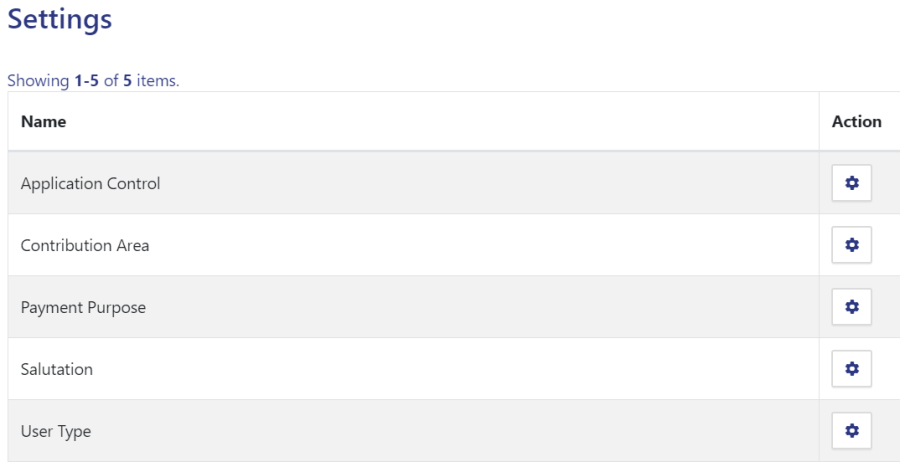
This section contains the configuration detail related to the Endowment module. Only the admin with the rights of Endowment_Admin can view and access it.
Endowment Portal Settings
The following table provides an overview of the settings available in the Endowment Portal and their respective purposes.
| Setting | Description |
|---|---|
| Application Control | Used to configure the overall application settings of the Endowment Portal, including enabling or disabling the contribution application process and managing portal-level configurations. |
| Contribution Area | Allows the Endowment Admin to create and manage different contribution categories and define minimum and maximum contribution amount limits for each area. |
| Payment Purpose | Enables the admin to define and manage the various purposes for which contributors can make endowment payments, ensuring proper categorization of contributions. |
| Salutation | This field contains pre-defined salutations for users |
| User Type | Enables the admin to configure different contributor categories (such as Alumni, Student, Faculty, Staff, Corporate, Individual, etc.) that contributors can select during the contribution process. |
| Manage Payment Gateways | Allows the admin to add, configure, view, and update payment gateways used for processing online endowment contributions. |
| Import Payments | Enables the admin to import legacy payment records into the Endowment Portal by uploading data through the prescribed Excel template. |
1. Application Control
In this field, all the Application Control messages are listed.
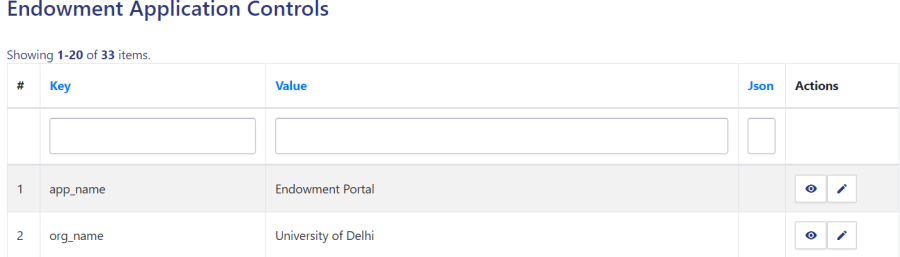
- Admin can only view the details by clicking on
 icon available in front of every entry.
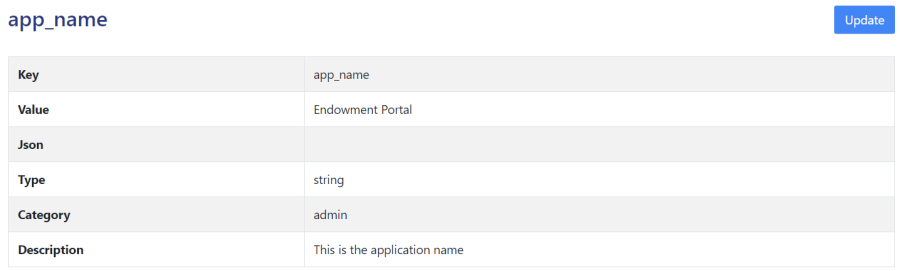
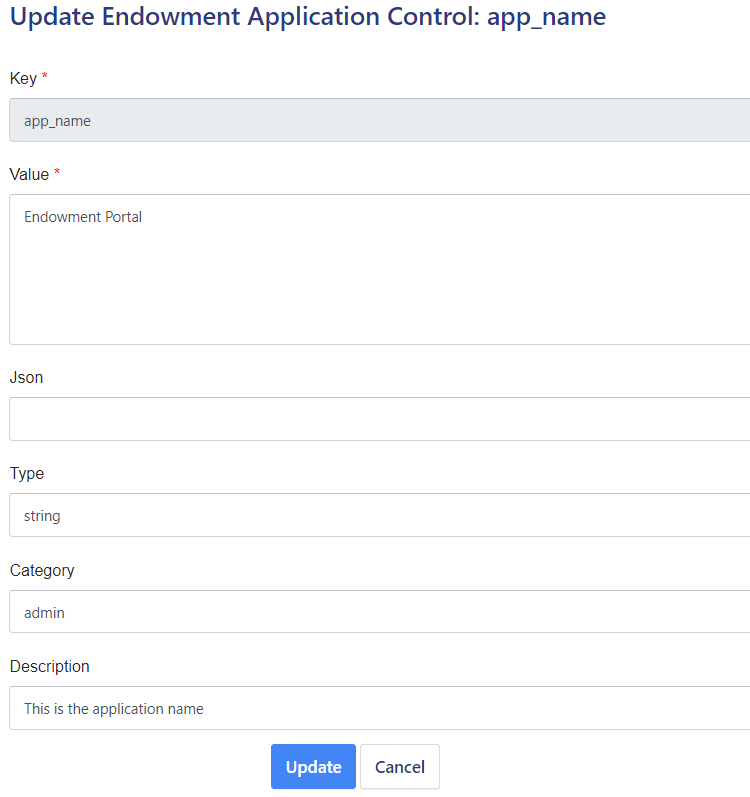
- Admin can edit/update the details by clicking on the
 icon available.
2. Contribution Areas
The Contribution Area section allows the Endowment Admin to create and manage the different contribution categories for which the institution accepts donations or endowment funds. These contribution areas are displayed to contributors during the contribution process, enabling them to select the appropriate fund or purpose for their contribution.
The admin can also define the Minimum Amount and Maximum Amount for each contribution area. This validation ensures that contributors can make payments only within the specified amount range. When a contributor selects a contribution area, the applicable minimum and maximum contribution limits are displayed, guiding them to enter a valid contribution amount.
Key Features
- Create and manage multiple contribution areas.
- Define minimum and maximum contribution amount limits for each contribution area.
- Display amount validation to contributors during the contribution process.
- Restrict contributions outside the configured amount range.
- Ensure contributors select a valid contribution amount before proceeding with payment.
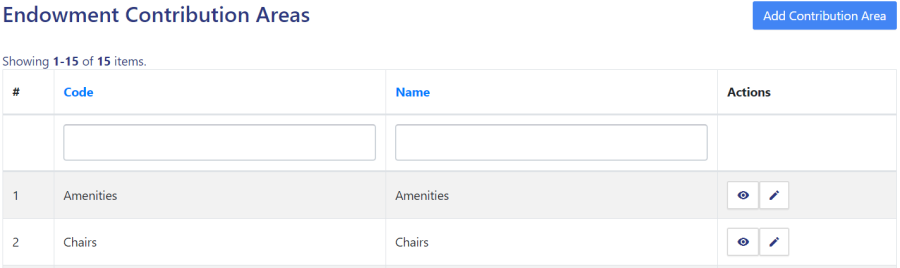
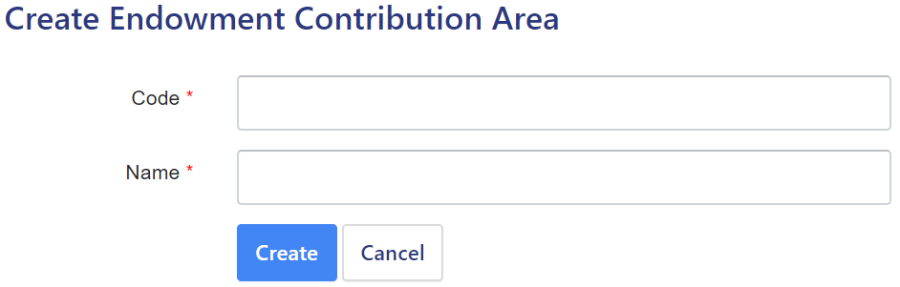
-To add a new contribution area, click the Add New button available at the top-right corner of the screen. Enter the required details and save the configuration to make the contribution area available for contributors.
Required Fields
| Field | Description |
|---|---|
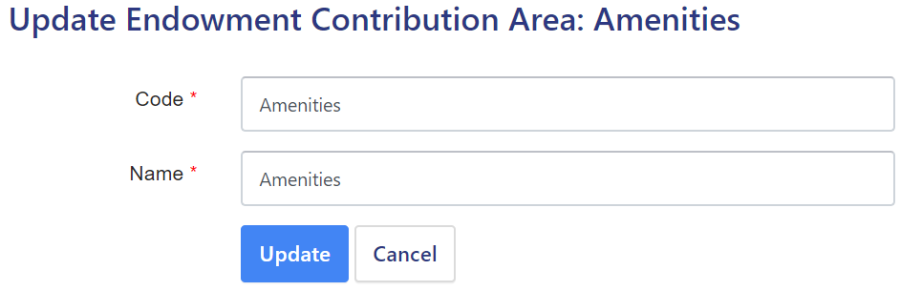
| Code | A unique code to identify the contribution area. |
| Name | The name of the contribution area. |
| Minimum Amount | The minimum contribution amount allowed for this contribution area. |
| Maximum Amount | The maximum contribution amount allowed for this contribution area. |
| Status | Set the status to Active to make the contribution area available for contributors. |
Key Features
- Create and manage multiple contribution areas.
- Configure minimum and maximum contribution amount limits for each contribution area.
- Display amount validation to contributors during the contribution process.
- Restrict contributions that fall outside the configured amount range.
- Enable or disable contribution areas by updating their status.
Admin can view the details by clicking on icon available in front of every entry.

Admin can edit/update the details by clicking on the icon available.
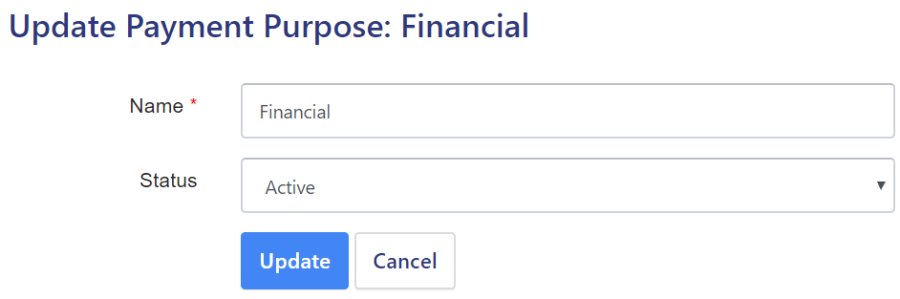
3. Payment Purposes
In this field, Admin can add all the purpose related to endowment for which the University/Institution can accept funds
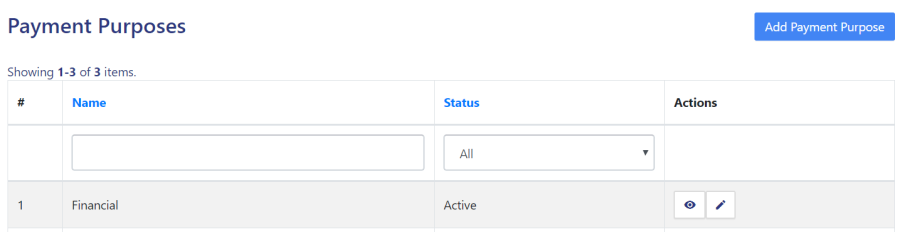
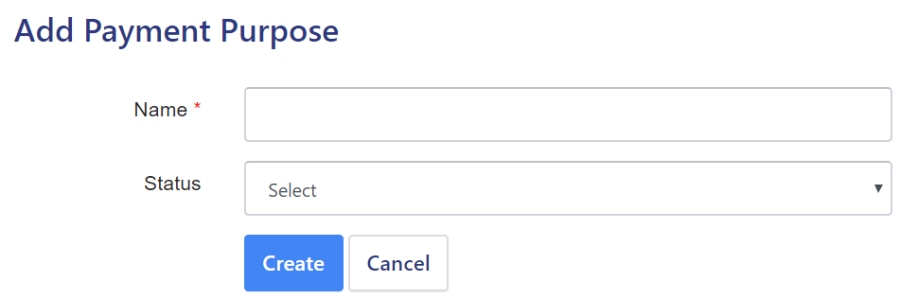
Admin can add a new purpose of payment by clicking on the “Add Payment Purpose” button present on the top right side of the portal and fill in the required details:
Name (Name of the membership)
Status (Inactive/Active)
Admin can view the details by clicking on icon available in front of every entry.

Admin can edit/update the details by clicking on the icon available.
4. Salutation
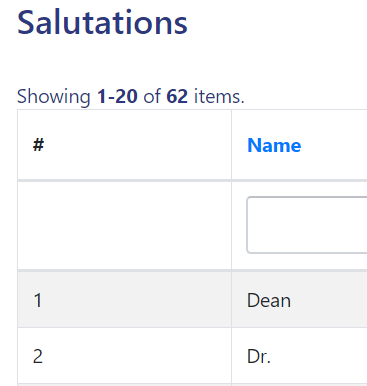
In this field, all the predefined salutations are available, and the admin can not add/update any new salutation in this setting.
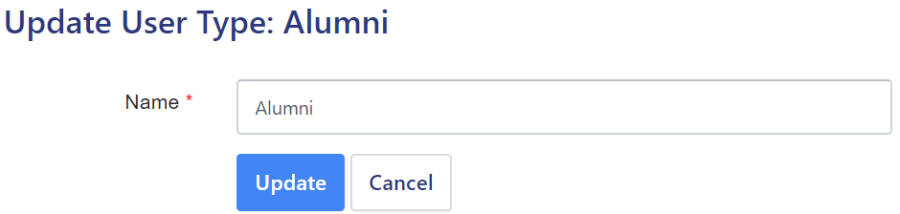
5. User Type
In this section, the admin needs to define which kind of users can give funds to the Univesity/Institution, Like Employee, Alumni, Family, Friends etc.
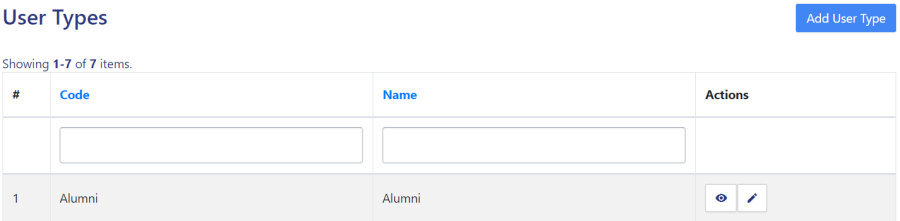
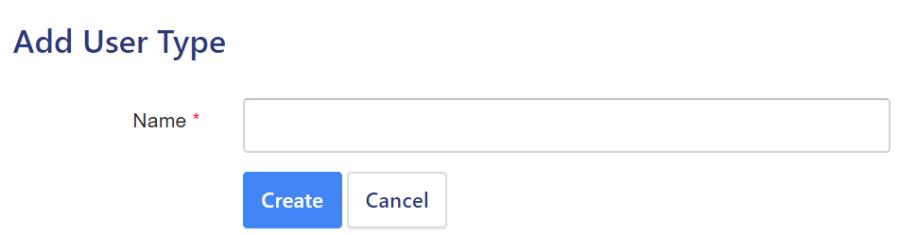
- Admin can add a new type of user by clicking on the “Add User Type” button present on the top right side of the portal.
- Admin can view the details by clicking on the view icon available in front of every entry.

- Admin can edit/update the details by clicking on the Pencil icon available
6. Manage Payment Gateways
The Manage Payment Gateways section enables the Endowment Admin to configure and manage the payment gateways used for processing endowment contributions in the system.
From this section, the admin can add a new payment gateway by clicking the Add New button available at the top-right corner of the screen. The admin can then enter the required gateway details and save the configuration to make the payment gateway available for use in the Endowment Portal.
In addition to adding new payment gateways, the admin can also view and update the details of existing gateways whenever required. This allows the institution to maintain accurate payment gateway configurations, modify gateway credentials or settings, and ensure seamless payment processing.
Key Features
- Add a new payment gateway using the Add New button.
- View the list of all configured payment gateways.
- Update the details of existing payment gateways.
- Manage payment gateway configurations to ensure smooth and secure online payment transactions.
7. Import Payments
The Import Payments section enables the Endowment Admin to upload legacy payment records into the Endowment Portal. This feature is useful for migrating historical payment data from an existing system or manual records into the SAMARTH Endowment Portal.
In this section, the admin can download the prescribed Excel Template, enter the legacy payment details in the required format, and upload the completed file back into the system. Once the uploaded file is successfully validated, all legacy payment records are imported into the portal and become available for future reference, reporting, and record management.
Steps to Import Legacy Payment Data
- Navigate to Import Payments.
- Download the Excel Template provided by the system.
- Enter the legacy payment details in the prescribed format.
- Save the completed Excel file.
- Upload the file using the Upload option.
- After successful validation, the legacy payment records will be imported into the Endowment Portal.
Note: Ensure that all data is entered strictly according to the prescribed Excel template. Missing mandatory fields or incorrect data formats may result in validation errors during the import process.
Endowment Form
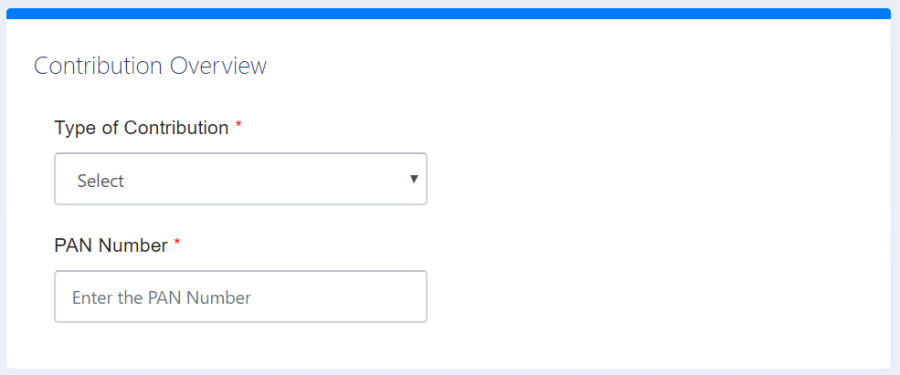
Anybody can fill this form by clicking on the “Sound Good, Contribute Now” button available in the Endowment Portal of the University/Institution.

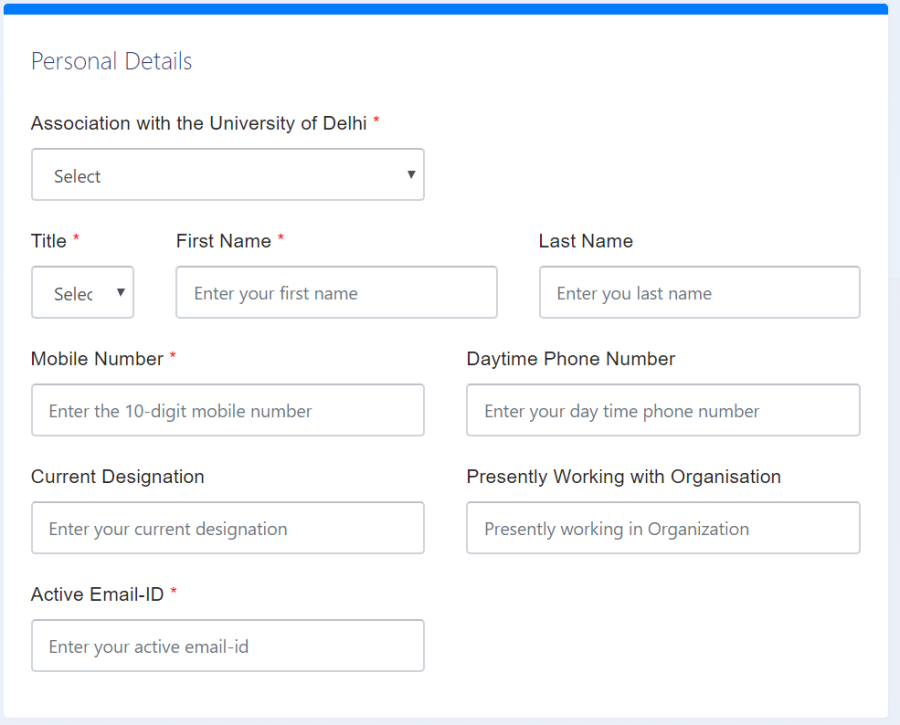
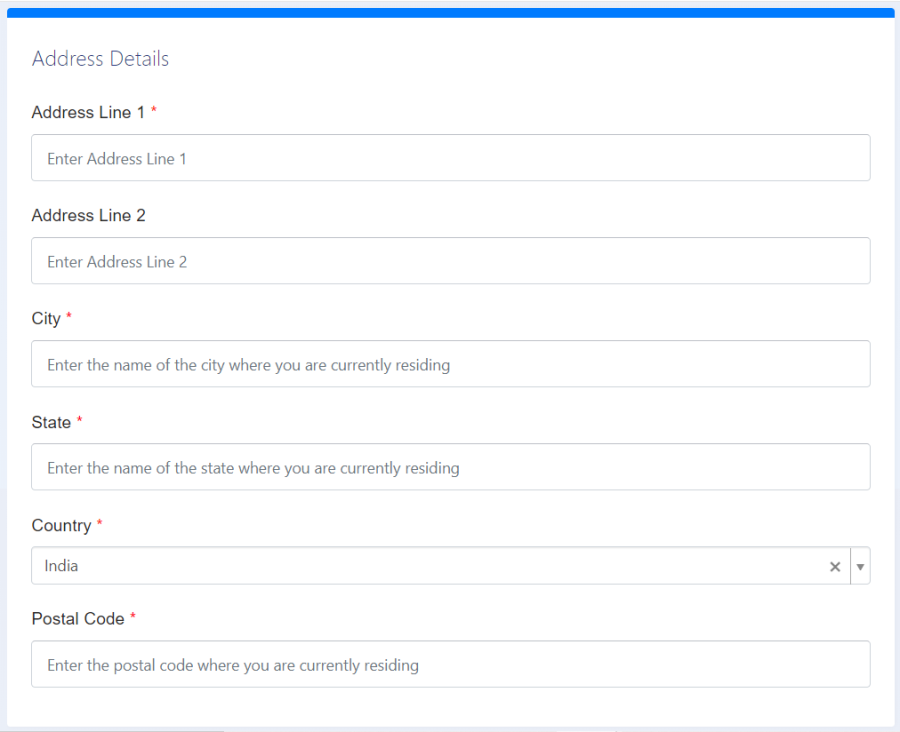
As soon as the user clicks on the button a form will appear asking to enter the details like:-
Contribution Overview
Type(Select from the drop-down)
PAN number
Personal Details
Association with the University (Select from the drop-down)
Title(Select from the drop-down)
First Name
Last Name
Mobile Number
Daytime Phone Number
Current Designation
Presently Working Organisation
Active Email-ID
Address Details
Address Line 1
Address Line 2
City
State(Select from the drop-down)
Country(Select from the drop-down)
Postal Code
Contribution
Contribution Amount
Contribution utilized for(select the checkbox)
Suggestion
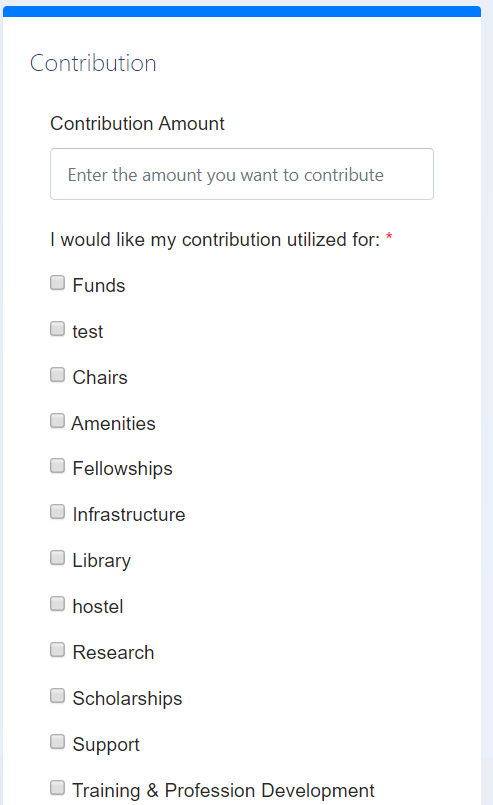
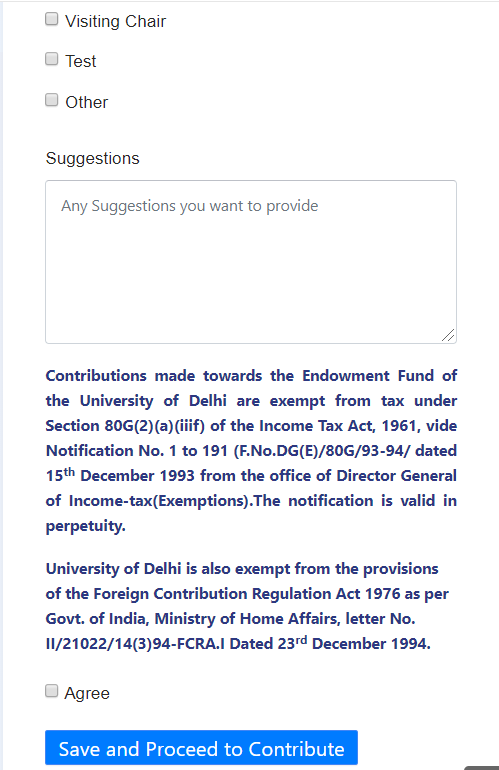
After clicking on "Save and Proceed to Contribute" the preview of the saved details will come for verification.
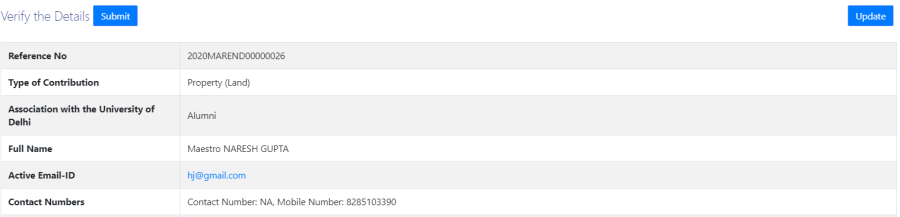
After verifying all the details click on the “Submit” button prompting you to be sure. Click on “OK” to proceed further.

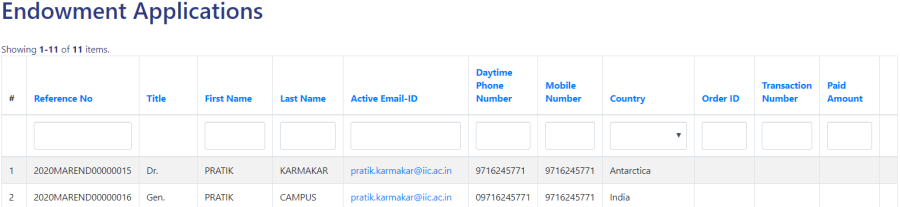
Endowment Application
This section contain all the applications submitted by the different users.
Endowment Transactions
The Endowment Transactions section allows the Endowment Admin to view and manage all endowment payment transactions processed through the portal. This section provides a centralized view of transaction records, enabling the admin to monitor payment activities and verify transaction details whenever required.
The admin can also download all transaction records in Excel format by clicking the Export All button available on the top-right corner of the screen. This feature helps in maintaining offline records, generating reports, and performing further analysis.
Key Features
- View all endowment transaction records in a single interface.
- Monitor payment details and transaction status.
- Export all transaction records in Excel format using the Export All button.
- Maintain transaction records for reporting, auditing, and reconciliation purposes.
Export Data
The Export Data section enables the Endowment Admin to export endowment application records from the system in Excel format. This feature allows the admin to download application data for reporting, analysis, record-keeping, and institutional documentation.
The exported file contains the details of endowment applications available in the system and can be used for offline review or further processing.
Key Features
- Export endowment application records in Excel format.
- Download application data for reporting and analysis.
- Maintain offline records for documentation and audit purposes.
- Generate reports for institutional and administrative use.
Diagrams
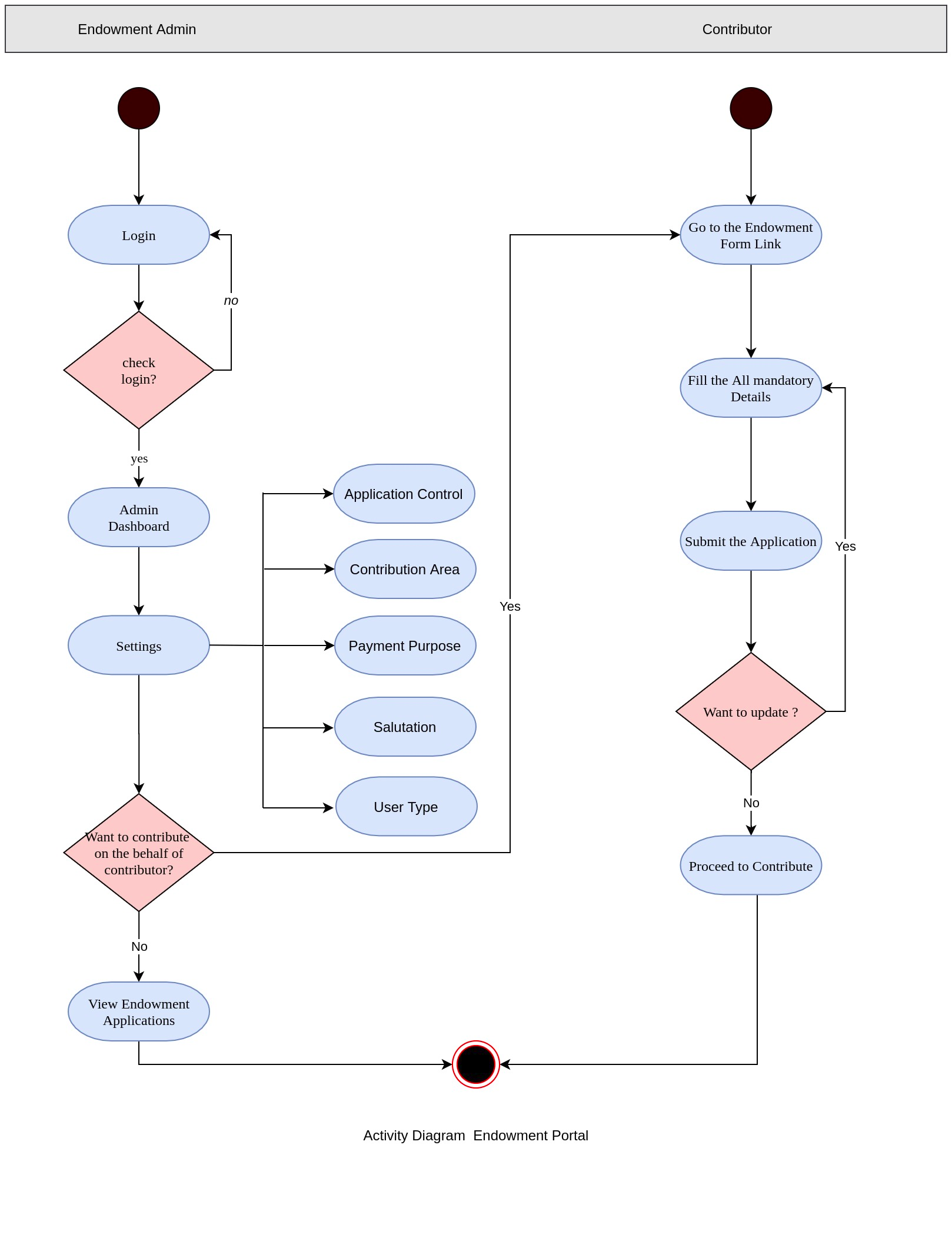
Activity Diagram
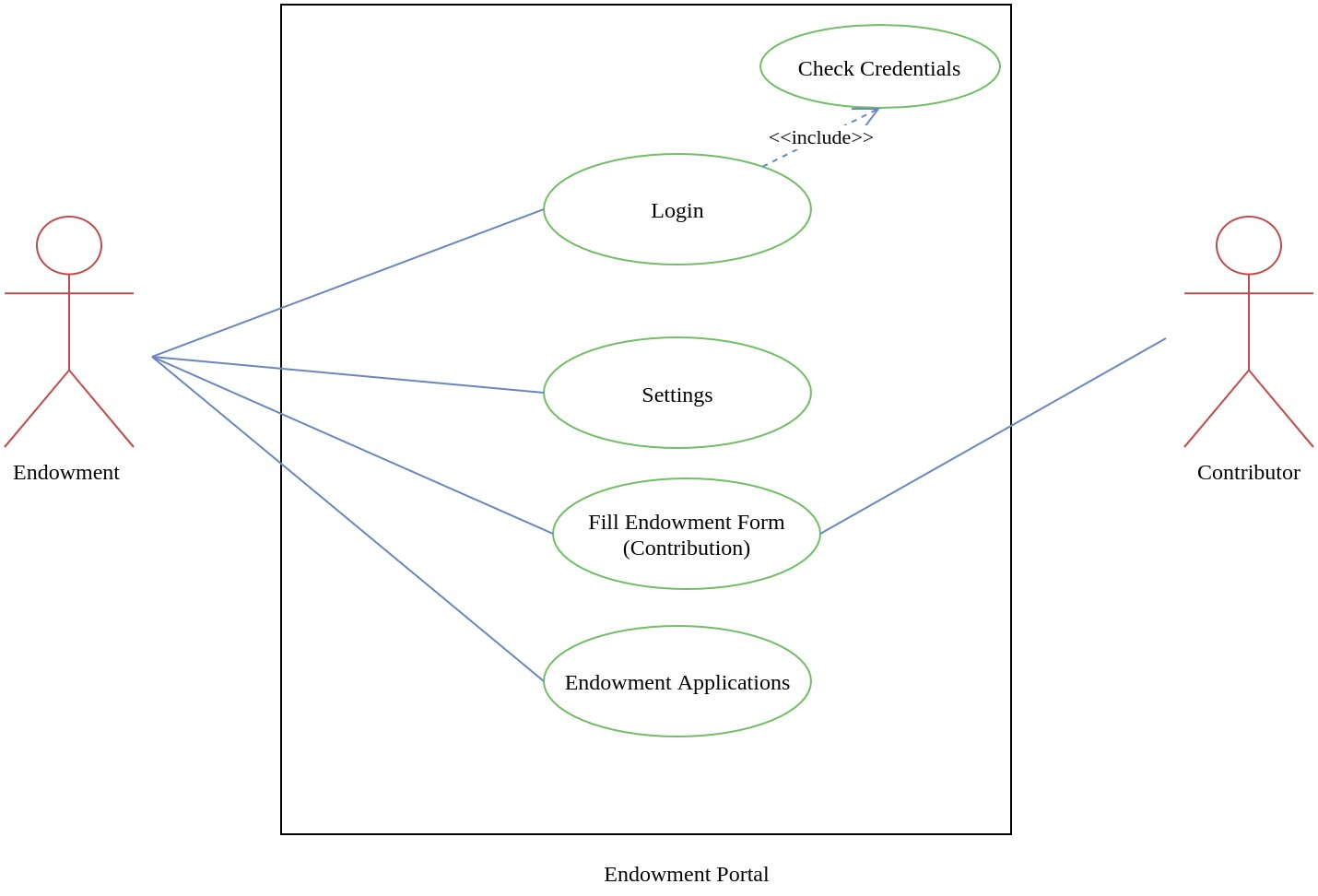
Use Case Diagram