Affiliation — Committee, Inspection & Land Verifier Guide
Introduction
This guide is for the people who assess colleges during affiliation: committee members, committee admins, inspection team members, land verifiers and guest observers. Each role has its own short section, so read only yours.
University administrators should read the Affiliation — Admin Guide. Colleges should read the Affiliation — College Guide.
Start here:
| I am… | Go to |
|---|---|
| A member of an audit committee | Committee member |
| The lead (admin) of an audit committee | Committee admin |
| Picked for an inspection team | Inspection team member |
| Appointed to verify a college’s land | Land verifier |
| Invited by email to observe an audit | Guest observer |
| Seeing a message I do not understand | If something goes wrong |
Who does what
| Role | What you do | How you were appointed | Where you work |
|---|---|---|---|
| Committee member | Score each section of a college’s application and submit your assessment. | A university administrator added you to an audit committee as an employee member. | Audit Committee workspace |
| Committee admin | Everything a member does, plus consolidate the members' scores and record the committee’s outcome. | Added as an administrative member of the committee. | Audit Committee workspace |
| Inspection team member | Visit the college independently and write your own report. | Added to the Inspection Team Pool, and picked for an inspection. | My Inspections |
| Land verifier | Check a college’s land details and record Approved or Rejected. | A university administrator assigned you to the college. | Land Verification |
| Guest observer | Give an advisory evaluation. You need no login. | Invited by email to a particular audit. | A secure link from your invitation |
You do not request these roles yourself. They are given, and taken away, by the university. You are told by email when you are added to a committee, picked for an inspection, or assigned a college.
Rules that apply to everyone
- Declare any conflict of interest first. In every role you must confirm that you have no personal, professional or financial connection with the college before you can record anything.
- You never see the college’s side of the process. Colleges never see reviewers' names or individual scores.
- Nothing is final until the university publishes it. Where the university publishes outcomes separately, the college sees an outcome only after an administrator publishes it.
Committee member
Purpose: Assess a college’s application section by section, and give the committee your own scores.
Who: A member of an active audit committee.
Where: Audit Committee. If you are only a committee member, you land here when you sign in.
Find your work
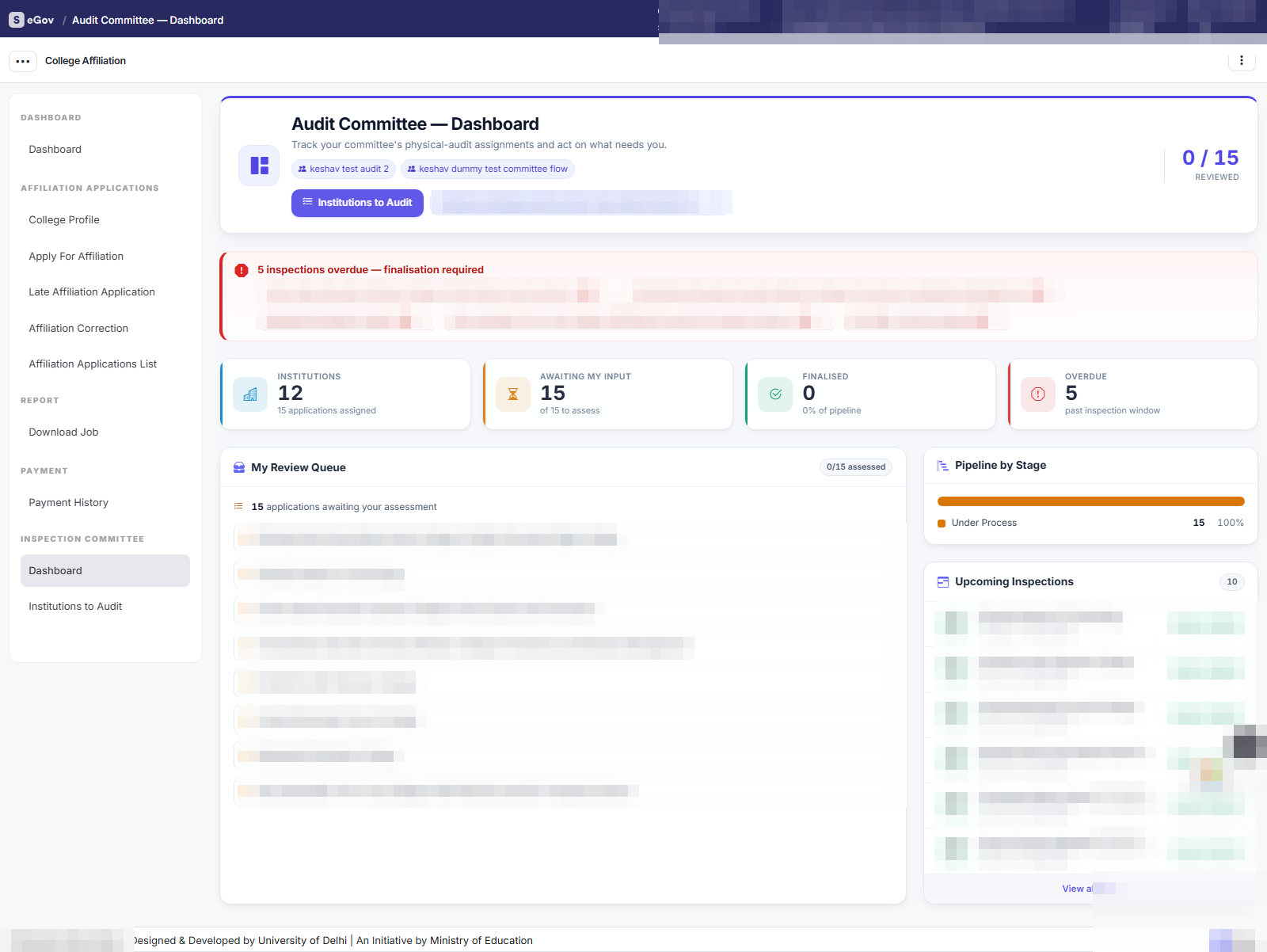
The dashboard shows the colleges and applications assigned to your committees, how many are pending or finished, audits that are overdue (their inspection window has ended with no outcome), audits starting within 30 days, and your own progress, including the applications you have not assessed yet. Institutions to Audit lists every application assigned to your committees, with search.
Assess an application
Who Committee member or committee admin
Before you begin: The audit has an assessment template. If not, the page says “This audit has no assessment template linked, so it cannot be scored. Please ask the administrator to set an audit template on the application session."
Steps:
Open the application. The page is the audit cockpit: the college’s own submitted data, section by section, with your assessment boxes beside it. A progress bar and a section list help you move through a long template.

Declare no conflict of interest. Tick the declaration and confirm. Until you do, the scoring boxes stay locked: “Please submit your Conflict-of-Interest declaration before recording an assessment." If you do have a conflict, tell your committee admin and the university.
Assess each section. For each section the template asks, you give:
- a score, within the maximum the template sets (the page shows the range);
- a grade, if the template uses grades. Where grade bands are set, you choose from a list, and with automatic grading the grade is worked out from your score;
- a remark, if the template requires one.
A section you leave completely blank is skipped. A star marks what the template requires.
Choose Save Draft to keep your work privately and carry on later, or Submit Assessment to send it to the committee admin. Drafts stay editable and visible only to you. A submitted section is locked.
Result: Your first submitted section moves the audit from Physical Audit Initiated to Under Process. Your committee admin sees your submitted scores.
If something goes wrong:
| Message | What it means | What to do |
|---|---|---|
| Assessment not saved: followed by the section and what is missing | A score is out of range, or a required score, grade or remark is empty. | Fix the sections listed and save again. Nothing is saved until all are valid. |
| Your assessment was not submitted … What you entered is saved as a draft. | An inspection team is still working. You cannot submit until every inspection report is in, or the university releases the inspection. | Keep the draft. Submit once the inspection is complete. |
| This audit has been finalized and can no longer be edited. | The committee admin already recorded the outcome. | Ask your committee admin to reopen the audit if a correction is needed. |
| An administrator has taken direct action on this application and closed this audit. No further assessments can be recorded until the administrator resumes the audit. | The university closed the audit. | Wait for the university to resume it. |
Committee admin
Purpose: Gather the members' assessments into the committee’s official verdict, record the outcome and finalise the audit.
Who: A committee admin. You also do everything a committee member does, so read Committee member first.
Follow your team’s progress
Under Team Readiness you see how far each member has got. Use Remind Pending Members to email everyone who has not yet submitted all sections. The page tells you how many reminders went out, and how many members could not be reached. You can also remind pending members across all your open audits at once.
Consolidate and record the outcome
Who Committee admin
Steps:
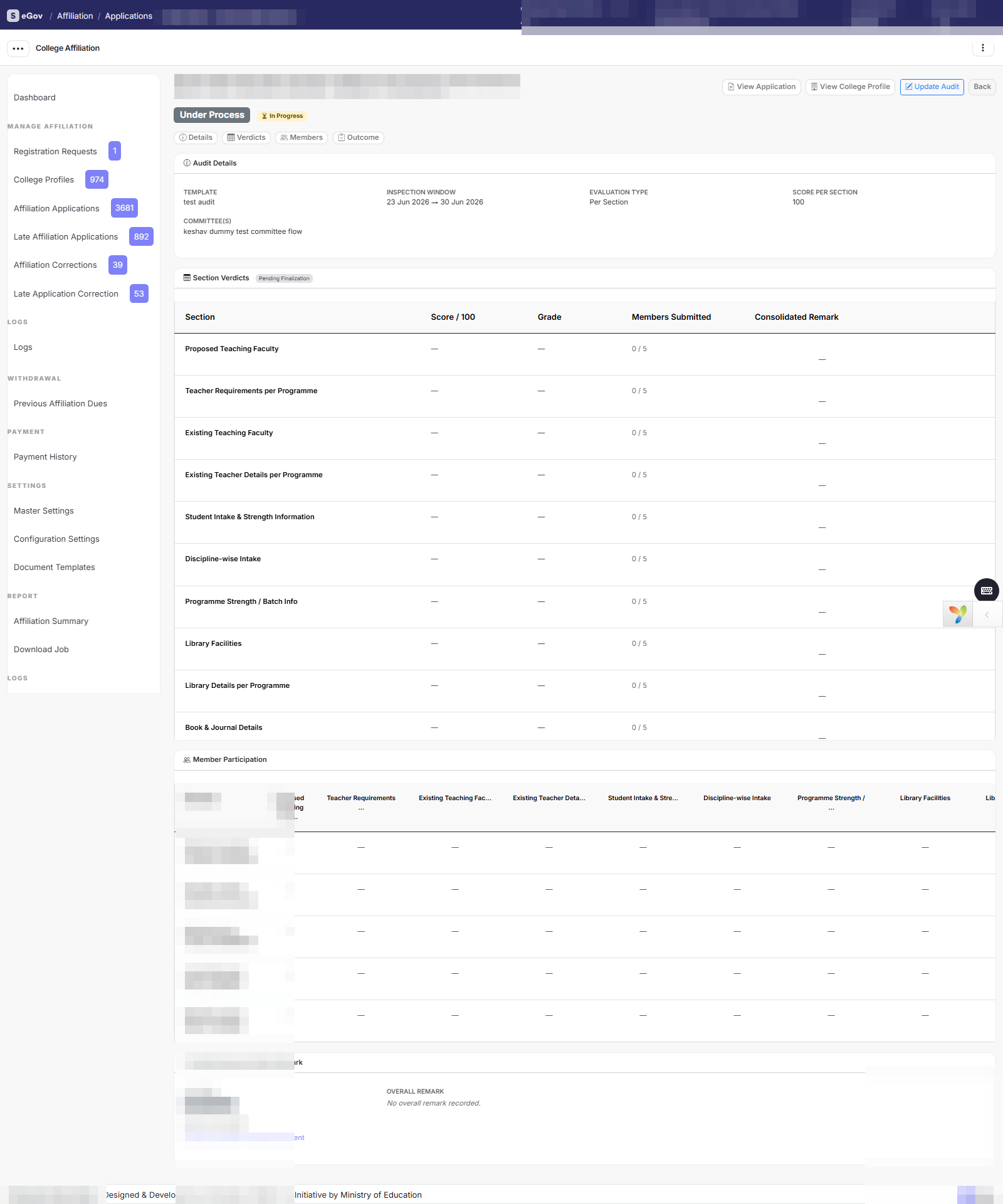
Open the application. For each section you see every member’s submitted score side by side, with the lowest, average and highest, and a note on whether they agree (Consensus, Minor spread or Divergent).
In Consolidated Verdict, enter the committee’s score, grade and remark for each section. These are the figures that officially count. Pre-fill avg gives you a starting point.
Check the Pre-Finalization Checklist: how many members have submitted all sections, and how many sections have a consolidated score.
Choose the Audit Outcome and write the Consolidated Overall Remark. The list offers these outcomes (when your committee is one stage of a chain, the list can differ):
Outcome Meaning Approved The committee approves. Rejected The committee rejects. Returned with Observations The application goes back to the college with the committee’s observations. Pending Correction The college must correct something before the committee decides. Awaiting University Action The committee has finished; the university acts next. Awaiting HED Action The committee has finished; the higher education department acts next. Choose Finalize Audit and confirm.
The rules the system enforces:
- A remark is mandatory for Rejected, Returned with Observations and Pending Correction, because it is the only explanation the college receives: “A consolidated overall remark is required for the outcome … — the college receives it as the explanation."
- On a per-section template, Approved, Awaiting University Action and Awaiting HED Action need a consolidated score for every section: “The outcome … requires a consolidated score for all N sections." Complete them, or choose a send-back outcome.
- If an inspection team is working on the application, you cannot record the outcome until every report is in or the university releases the inspection.
- If two admins finalise at once, only the first counts: “This audit was finalized by another committee admin a moment ago — your changes were not applied."
Result: Finalising locks every input, moves the application to the status that matches your outcome, and records the action. The college does not see the outcome yet. Where the university publishes outcomes separately, an administrator publishes it from the application. Otherwise the college sees it as soon as you confirm, with no outcome email.
Reopen a finalised audit
If the verdict must change, choose to reopen the audit. Previous consolidated scores are kept as the starting point; revise the sections and finalise again. Only a committee admin can reopen. If another admin has already reopened it, the page says so.
When your committee is one of several
If the university uses several committees in a fixed order, your verdict is one stage in a chain. The page shows which stage you are. Depending on the university’s rules, finalising may open the next committee automatically, or an administrator must open it. A rejection may stop the chain or let the remaining committees still give their verdicts. The college may see which stage is active, but never members, scores or remarks.
Read the report
View audit and Print Report show the committee’s consolidated verdict, the member participation, any guest evaluations, the outcome and the overall remark. The report can be printed once the audit is finalised.
Inspection team member
Purpose: Visit a college on the inspection date and write your own independent report on what you see.
Who: A member of the Inspection Team Pool who has been picked for an inspection.
Where: My Inspections
Before the visit
When you are picked, you are emailed. The inspection appears under My Inspections with its status. You inspect independently of the other team members and submit your own report.
Decline if you cannot take part. Choose Decline assignment and give a reason, which is shared with the university’s affiliation administrators, so another member can be picked in time.
Write and submit your report
Who Inspection team memberNeeds toggle Inspection Team
Steps:
Open the inspection. A panel tells you whether your report is open:
Message What it means Inspection date not set yet The university will set the date once the team is complete and email you. The report opens on the inspection date You can read the college’s details now, but you cannot write the report until the inspection date. Your report is open You can save drafts and must submit by the date shown. The submission window has closed Ask the affiliation administrator to allow a late submission. This is allowed once per member, and your draft is kept. Declare your conflict-of-interest status. Tick that you have no personal, professional or financial connection with the college, its management or its staff, and choose Confirm and start the report. If you do have a conflict, choose I do have a conflict of interest, describe it, and choose Declare conflict and decline. This declines the assignment and another member is picked.
Assess each section. For each section, check what the college declared (shown beside your boxes) against what you see, then enter your score, grade and remark, as a committee member does.
Add evidence where the section asks for it. You can attach photos (JPG, PNG or WEBP, within the size and number limits the university sets) with an optional caption, or add an https video link. If the university requires evidence for a section, you need at least one item before you can submit. Evidence is seen by committees and university staff, never by the college.
Enter your Overall remark and your Recommendation: Recommended, Recommended with conditions or Not recommended. The report is dated the inspection day automatically.
Choose Save draft to keep your work, or Submit report.
Result: Your report is sent to the university and to the committee reviewing the application, and is locked. It shows as Report submitted, or Submitted late if it came after the window. A saved draft is not a submission: it shows as Report draft saved.
Related: Inspection Team toggle
Land verifier
Purpose: Check a college’s land details and tell the university whether they are acceptable. The university cannot approve or reject the college’s profile until you do.
Who: A person the university has assigned to one or more colleges.
Where: Land Verification
Find the colleges assigned to you
Your dashboard shows how many colleges are pending, approved and rejected, and lists those waiting for you. Each count opens the matching list. You see only the colleges assigned to you.
Record your land decision
Who Land verifierNeeds toggle Land Verifier Workflow
Steps:
- Open a college’s profile from your list and review its land details. If the university collects extended land details, those answers are part of what you review.
- Choose Record Land Decision.
- Choose Approved or Rejected, and enter your remark.
- If you have a site-visit or verification document, upload it as a PDF. This is optional.
- Submit your decision.
Result: The college is emailed that its land details were processed, with the status and your remark. The university can now approve or reject the profile.
Good to know:
- The profile must be submitted first. If the college has not submitted it, the page says “This college profile has not been submitted yet. Your land decision opens once the college submits it."
- Choose a decision. If neither is chosen: “Choose Approved or Rejected before submitting your land verification decision."
- You decide on land only. Sending the profile back to the college, approving it or rejecting it is the university’s decision.
- You may be asked to decide again. If the university sends the profile back or reopens it, your earlier decision is cleared, and you review it again once the college resubmits. The page shows “Land details have changed since your last decision” and what changed.
- You may be replaced. If the university assigns another verifier, the profile leaves your list.
Related: Land Verifier Workflow toggle
Guest observer
Purpose: Give an expert, advisory view on a college’s application during an audit.
Who: An external expert invited by the university. You need no Samarth login.
Open your evaluation
Who Guest observer (no sign-in needed)
Steps:
- Open the unique link in your invitation email. If the link is cut or changed, you see “Invalid Observer Link. This link is incomplete or has been altered. Please use the original link from your invitation email." Use the original email.
- Enter the email address you were invited with and choose Send OTP. Whatever you enter, the page says “If this email was invited as an observer, an OTP has been sent." This is deliberate, so nobody can find out who was invited.
- Enter the one-time code from your email. You have 5 tries for each code. If it expires or you run out of tries, request a new one: “The OTP has expired. Please request a new one." or “Too many incorrect attempts. Please request a new OTP."
- Declare no conflict of interest. You cannot submit an evaluation until you do.
- Fill in the sections you wish to evaluate and submit. You must fill in at least one: “Please fill in at least one section before submitting." Each section is saved as you go, so a lapsed one-time code does not cost you your work.
Result: “Your evaluation has been recorded (N section(s)). Thank you."
Your input is advisory only. It is stored separately, labelled as an observer’s evaluation, and is never averaged into the committee’s official scores. It does not affect the audit outcome. If the audit has no template yet, the page says Not Ready Yet; try again later.
If something goes wrong
Reference numbers
Whenever the system refuses an action or fails, it shows a reference such as SAVE-261008-4813. Quote it when you contact the university. Under Error History you can search your own errors by reference.
Common questions
| Question | Answer |
|---|---|
| I cannot record a score. | You have not declared that you have no conflict of interest, or the audit is already finalised, or the university has closed it. |
| I cannot submit my assessment or outcome. | An inspection team has not finished. Your work is kept as a draft. The university may release the inspection to let you go ahead. |
| The inspection report will not let me submit. | The inspection date has not arrived, the window has closed, you have not declared your conflict-of-interest status, or a required section is missing evidence. |
| I was removed from a committee. | The university changed the committee. You keep committee access if you serve on another active committee. |
| A college asked why it was rejected. | Only the committee’s overall remark reaches the college. Individual members and scores are never shared with it. |
If your question is not here, contact the university’s affiliation office and quote any reference you were shown.